GitHub Copilot Customization: Instructions, Prompts, Agents and Skills
Published on
We’re approaching the end of 2025, this has been a year of agents, for sure.
However, we’re about to step into 2026 with the whole collection of buzz-words and approaches that may seem overwhelming. We have Instructions, Reusable Prompts, Custom Agents, Subagents and now Skills. If you’re scratching your head trying to figure out what all these terms mean and what to use when, you’re not alone.
In this post I’m going to summarize various ways you can customize GitHub Copilot and help you navigate through the options available.
Instructions
Instructions are the oldest and the easiest to explain. I hope :)
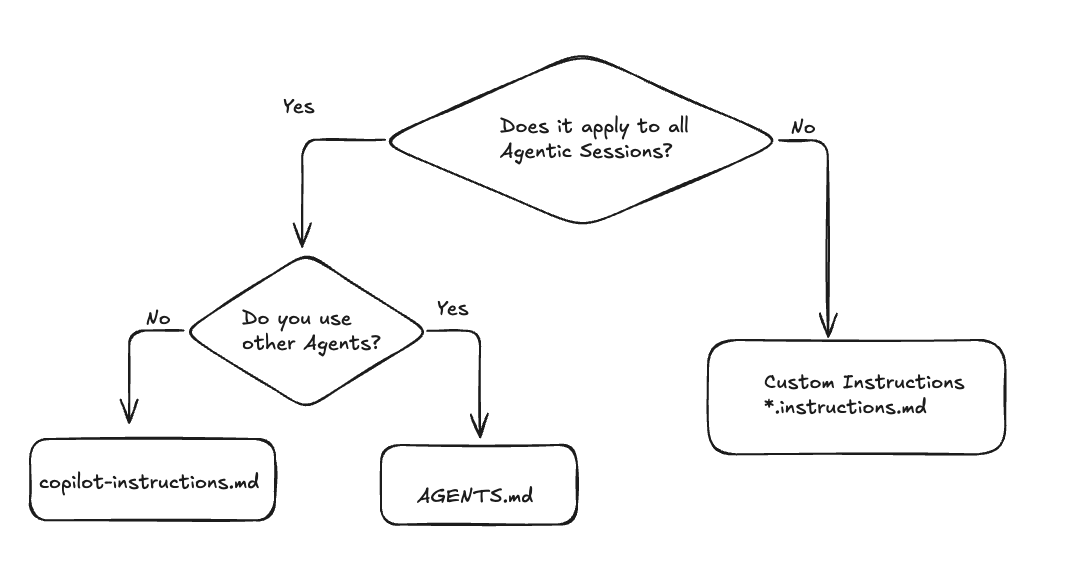
We basically, have two different ways to provide information to every agent session:
- Copilot Instructions -
copilot-instructions.mdfile in the.githubfolder of your repository. This file is automatically attached to the context of every Copilot session in that repository.
Treat it as an entry point to provide general context about the project, coding styles, conventions and documentation. Keep in mind the context window size and try to keep this file concise.
- Custom Instructions -
*.instructions.mdfiles in the.github/instructionsfolder of your repository. These files have a matching regex to help agent pick them up based on the pattern of the file it’s working on.
Custom instructions can provide more specific context for certain parts of the codebase. Think about tests.instructions.md that would apply to all test files in the repository (**/tests/**).
And to make it a bit more interesting, we can define
- AGENTS.md - file in the root of the repository that serves the same purpose as
copilot-instructions.md, but can be used by other agents. See Agents.md for more details. This hopefully will become a standard. Looking at Anthropic here…
To put it simply, you can follow this decision tree:
Reusable Prompts
Reusable Prompts are pretty old too. They were introduced as a way to store and share frequently used prompts that you give to the agent.
As the landscape evolved, they can now be seen as utility “script” or “macros” that you can use to invoke occasionally to perform an agentic task.
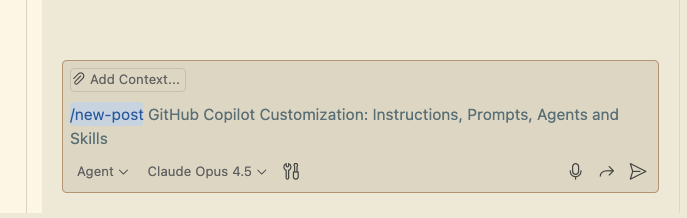
For example this blog is written in VS Code where I have a /new-post prompt that scaffolds needed files, generates tags. There is also a /spell-check prompt that reviews the content of the uncommitted .md file for spelling mistakes.
It can be invoked via slash command:
and would run in the context of current Agent session:
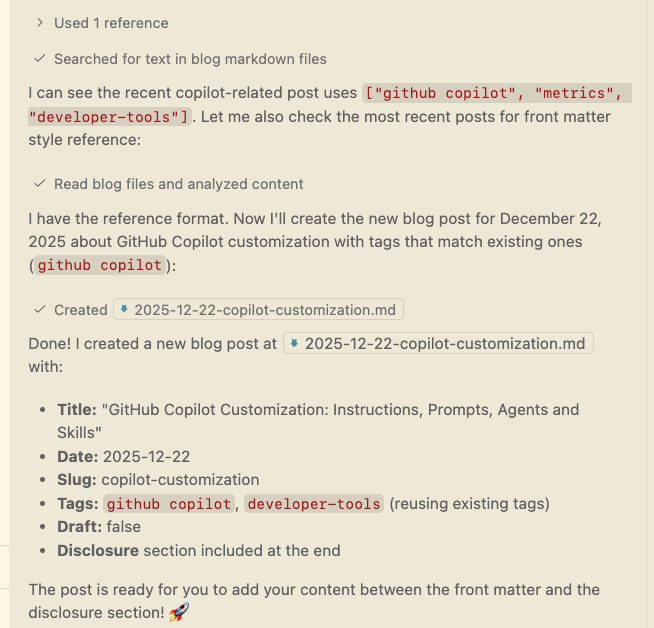
Prompts that I use don’t deserve a full orchestration as Agents and they don’t run complex workflows.
They are defined in the .github/prompts folder of the repository as individual *prompt.md files.
Btw, did you know, that you can convert any Agent Session into a reusable prompt?
Invoke the /savePrompt command in the context of an active Agent session and it will generalize the current discussion into a reusable prompt that can be applied in similar contexts.
Custom Agents
Custom Agents or, as they were initially called, Custom Agent Modes, have been introduced after.
Custom Agents can define a specific persona and behavior for the agent. Agent definition file can customize the tools and MCPs available to the agent.
Custom Agents are stored in the .github/agents folder of the repository as individual *agent.md files. They can also be shared across repositories via .github or .github-private organization repositories. They are accessible via several entry points:
- IDE
- Copilot CLI
- GitHub Web UI
In its simplest form, a custom agent defines a workflow that can be run without user interaction. These agents can be run as background tasks (on your machine, via Copilot CLI, using git worktrees) or in the cloud (as GitHub Copilot Coding Agent).
However, locally you can trigger custom agents for interactive sessions as well. A built-in Planning Agent is a good example: it has limited ability to execute code and modify files, but it’s tasked to analyze the task, break it down into steps, ask the user for confirmation and then build the plan that can be handed over to another local, background or cloud agent for execution.
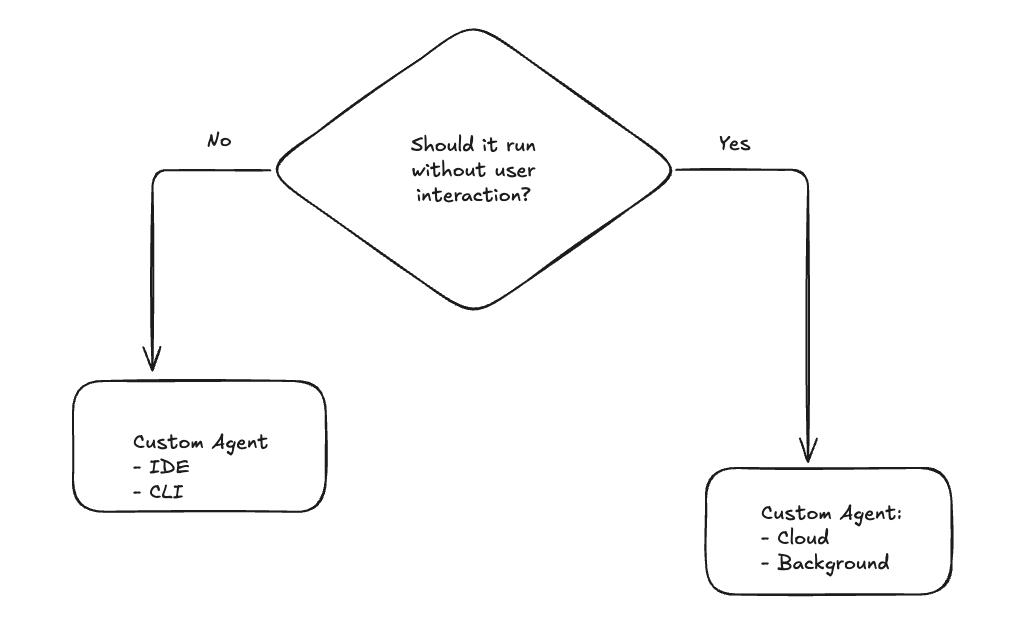
Local custom agents can be manually selected in the Chat UI or in the CLI via /agent command.
Context Management
While models become more capable, context window size remains a limiting factor. In the beginning of the year we had limited ways to manage the size of the session context. Pretty much we had to rely on three strategies:
- Closing off the session when it becomes too large, optionally asking the agent to prepare a summary document that could be passed to the new session.
- Built-in session summarization that would condense the context when it exceeds certain size.
- Manual selection of active tools and MCPs
Factors contributing to the context size are (not including system and custom prompts):
- Built-in tools
- MCPs
- Files that agent decided to load into context
- User messages and instructions as well as responses from the agent
With Custom Agents we can specify which tools and MCPs are available to the agent, thus reducing the context size.
However, the agent may still load too many files for the subtask such as researching, looking for documentation, reading terminal outputs etc.
To address this, Subagents were introduced.
Subagents
Subagents are context-isolated agents (or agentic sessions) that can be invoked by the main agent to perform specific tasks. These Subagents have their own context window, they can load additional information, process it and return the control to the main agent along with just the relevant results.
For example, if the main agent is tasked with implementing a new feature, it may invoke a Subagent to research best practices or to analyze existing code patterns in the repository. The Subagent can load relevant files, process them, and return a concise summary or specific recommendations to the main agent.
This approach helps in managing the context size effectively, as the main agent doesn’t get overwhelmed with too much information.
As a user you can ask the main agent to use a Subagent for specific tasks by hinting it to use #runSubAgent tool explicitly.
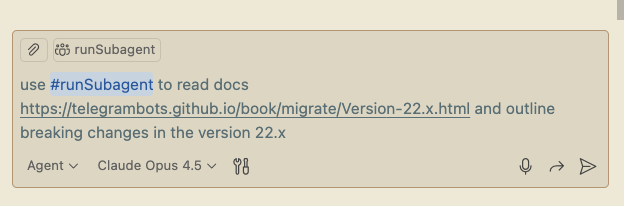
This will kick off a new session that would pull the entire page content, process it and return just the summary to the main agent.
Now, where it gets really interesting is when we invoke existing Custom Agents as Subagents too.
In my repository I have created a Documentation Reader custom agent that knows how to pull docs from external sources and summarize them.
I can explicitly select this agent or I can tell my main agent to invoke it:
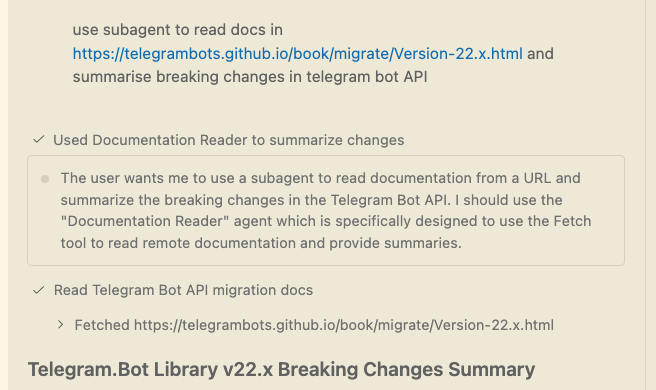
If we check the debug logs of the main agent session we’ll see that it composed a prompt for the subagent and invoked it successfully:
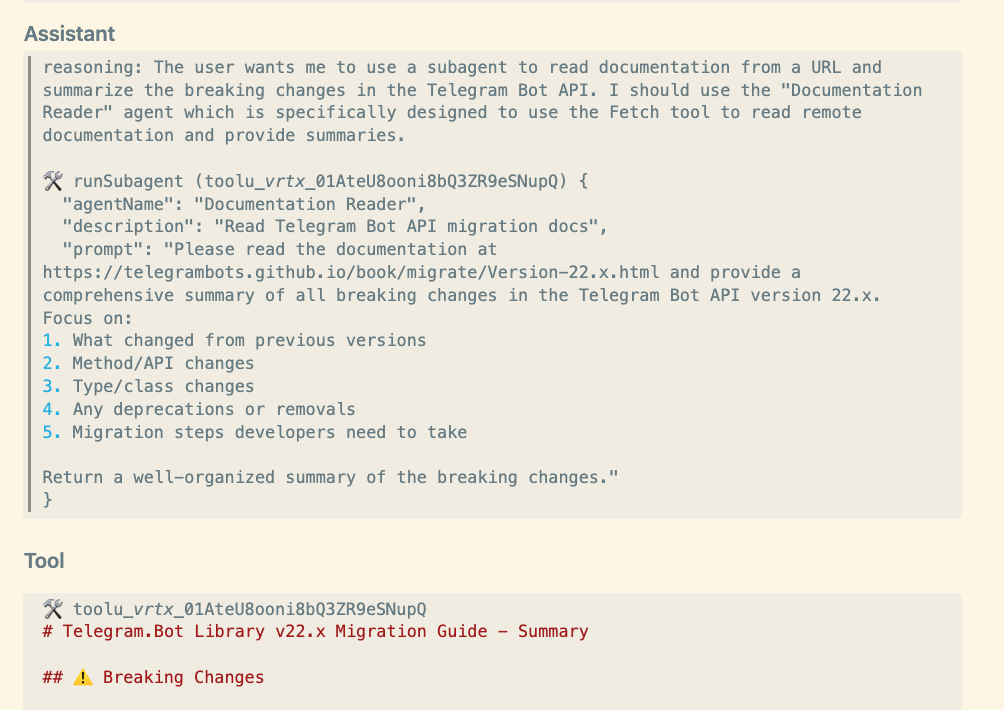
The only content that the main agent received back was the summary of the documentation, while the subagent had access to the entire documentation content.
If you run VS Code Insiders and you’ve enabled currently experimental Agents as Subagents (that’s a mouthful) feature, you can try asking Copilot about available subagents in your repository:
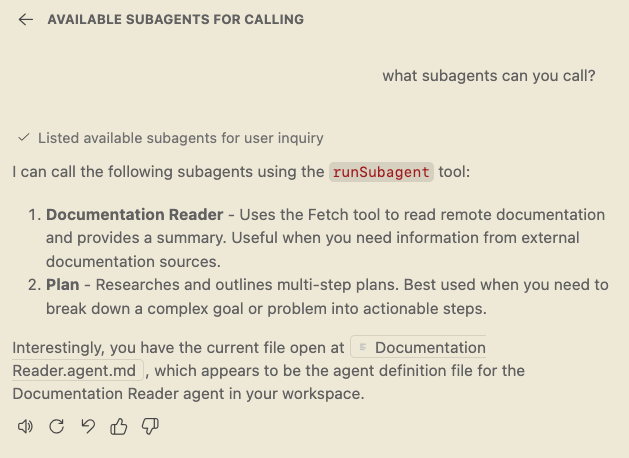
As you can see, if you ask generic agent to plan a task, it can invoke Planning Agent as a Subagent.
So to summarize, Subagents are not independent entities, they are the way to execute a prompt or a custom agent with the isolated context.
Skills
Now, the latest addition to the customization family is Skills.
Skills sit somewhere between Reusable Prompts and Custom Agents. And they have some similarities to MCPs as well. Yeah, it’s that complicated :)
Let’s define a Skill first:
Skill is a collection of optional scripts, assets and SKILL.md definition file that describes the purpose of the skill, when to call it and how to use included assets.
Skills are stored in the .github/skills folder of the repository as individual skill folders.
What makes them special is the discovery mechanism.
When an agent session is started, the agent scans the repository for available skills and loads their definitions into the context along with tools and MCPs. While Skills can be somewhat large they take a small amount of context space as only their definitions are loaded initially.
By definition, skills can include scripts and assets, they are good for encapsulating reusable logic that can be invoked by the agent when needed and they combine the best of both worlds:
- LLM-powered agentic behavior
- Deterministic results from scripts
For example, I have a dotnet-tests skill in my repository that contains instructions to run the skill whenever the agent updates .cs files and in case the user asks about test suite status. It is also tasked to use included scripts that prepare the project, provide flags that I need, parse the output and summarize the results in the format that I prefer.
How it all fits together
Let’s look at the diagram below:
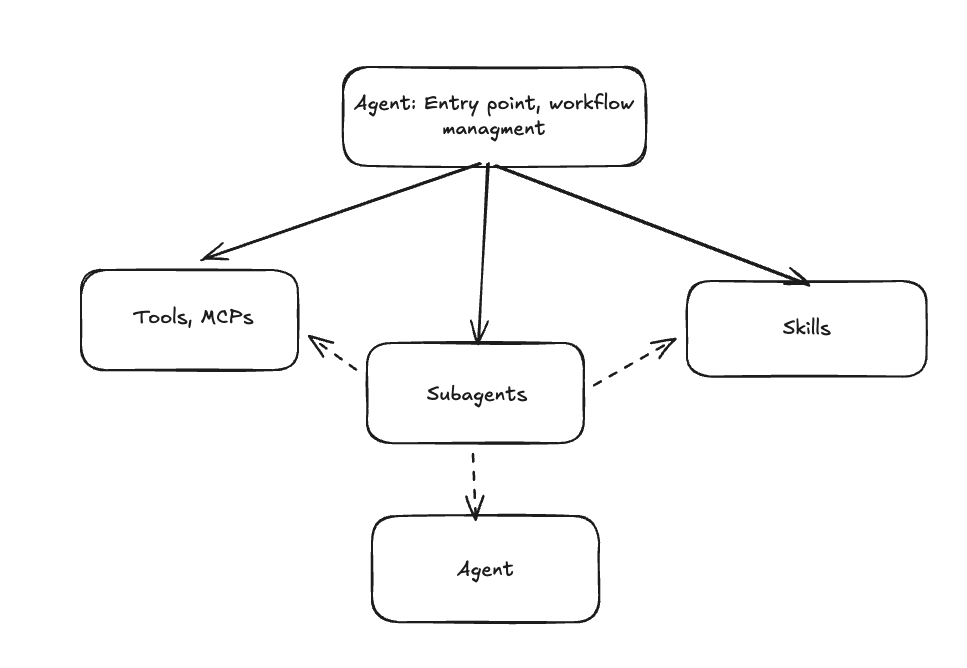
The Agent is an entry point. Agents are independent entities that can be invoked directly locally, in background or in the cloud. Every agent can break down its tasks and implement them using tools, MCPs, Skills. These invocations can happen directly in the context of the current agentic session or in the isolated context of a Subagent.
Subagent task can be as simple as running an in-line prompt or as complex as invoking another Custom Agent.
Conclusion
As you can see, GitHub Copilot customization options have evolved significantly over the year. We’re still yet to see how users will adopt these new concepts and what best practices will emerge.
Happy hacking!
Disclosure
I’m employed by GitHub at the time of writing this post. All opinions are my own.